Nuxtで自動見積書作成ページを実装する
Nuxt3 の勉強を兼ねて簡易的な見積書作成機能を作ってみました。フォームで入力した内容から見積書を生成します。本記事では実装の流れを解説していきます。
見積書のフォームを作る
まずは下記のような簡単な見積書のフォームを作成します。
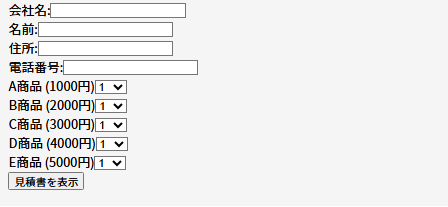
コードの全体図は下記のとおりです。
<template>
  <form @submit.prevent="goToPrint">
    <div>
      <label>会社名:</label>
      <input type="text" v-model="form.company" />
    </div>
    <div>
      <label>名前:</label>
      <input type="text" v-model="form.name" />
    </div>
    <div>
      <label>住所:</label>
      <input type="text" v-model="form.address" />
    </div>
    <div>
      <label>電話番号:</label>
      <input type="text" v-model="form.phone" />
    </div>
    <!-- 商品ごとのセレクト -->
    <div v-for="p in products" :key="p.value">
      <label>{{ p.label }} ({{ p.price }}円)</label>
      <select v-model.number="quantities[p.value]">
        <option v-for="n in 10" :key="n" :value="n">{{ n }}</option>
      </select>
    </div>
    <button type="submit">見積書を表示</button>
  </form>
</template>
<script setup lang="ts">
const products = [
  { label: "A商品", value: "A", price: 1000 },
  { label: "B商品", value: "B", price: 2000 },
  { label: "C商品", value: "C", price: 3000 },
  { label: "D商品", value: "D", price: 4000 },
  { label: "E商品", value: "E", price: 5000 }
]
const form = reactive({
  company: "",
  name: "",
  address: "",
  phone: ""
})

// 商品ごとの数量(初期値1)
const quantities = reactive<Record<string, number>
>
({
  A: 1,
  B: 1,
  C:
  D: 1,
  E: 1
})
const goToPrint = () =>
 {
  // URL パラメータ用に商品と数量をまとめる
  const query = {
    company: form.company,
    name: form.name,
    address: form.address,
    phone: form.phone,
    products: JSON.stringify(quantities) // ← 文字列化して渡す
  }

  navigateTo({
    path: "/print",
    query
  })
}
</script>
見積書生成の仕組みとしては goToPrint 関数の navigateTo を使って、フォームを送信したら「/print」にページ遷移する。
ページ遷移するときに query を使ってパラメーターも送るという方法をとっています。
パラメーターは、フォームの内容からとってきています。
例えばフォームに入力した内容が下記であれば、「/print」に遷移した url は「「/print?company=○○ 株式会社&name=田中太郎&address=東京都港区&phone=00000000000&products={"A":1,"B":2,"C":3,"D":4,"E":5}」」のような形になります。
- 会社名:○○ 株式会社
- 名前:田中太郎
- 住所:東京都港区
- 電話番号:00000000000
- A 商品の個数:1
- B 商品の個数:2
- C 商品の個数:3
- D 商品の個数:4
- E 商品の個数:5
「/print」は見積書を表示するためのページで、送られたパラメーターをもとにして下記のように自動的に表示されるようになります。
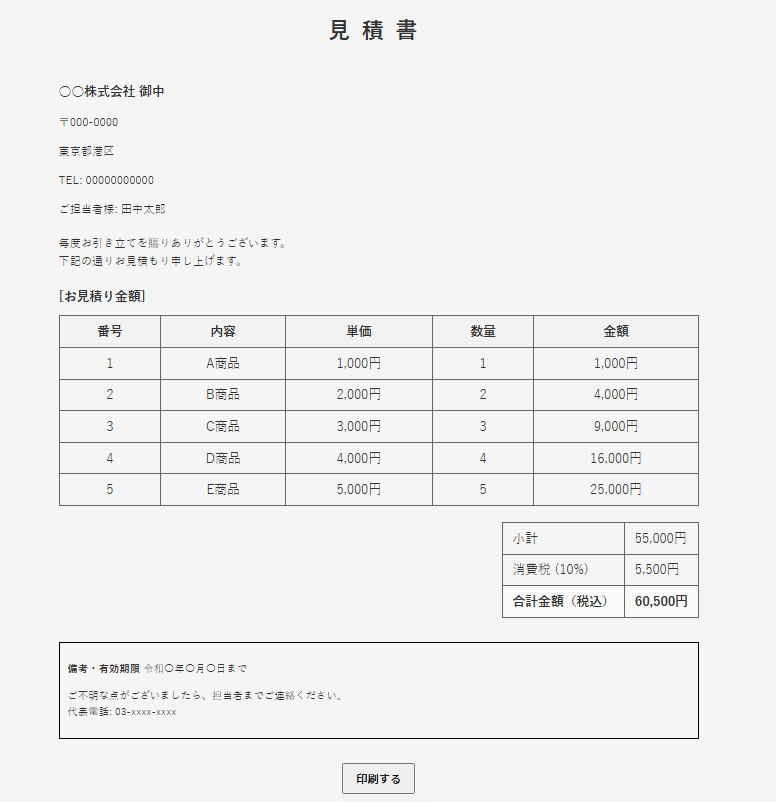
見積書を表示するページ「/print」を作る
では先ほど紹介した見積書表示用のページである「/print」を作成します。「/print」のコードの全体図は下記のとおりです。
<template>
  <div class="estimate">
    <!-- 見積書タイトル -->
    <h1 class="title">見積書</h1>
    <!-- 宛先 -->
    <div class="client">
      <p class="company">{{ route.query.company }} 御中</p>
      <p>〒000-0000</p>
      <p>{{ route.query.address }}</p>
      <p>TEL: {{ route.query.phone }}</p>
      <p>ご担当者様: {{ route.query.name }}</p>
    </div>
    <!-- メッセージ -->
    <p class="greeting">
      毎度お引き立てを賜りありがとうございます。<br />
      下記の通りお見積もり申し上げます。
    </p>
    <!-- 商品テーブル -->
    <h2 class="section-title">[お見積り金額]</h2>
    <table class="products">
      <thead>
        <tr>
          <th>番号</th>
          <th>内容</th>
          <th>単価</th>
          <th>数量</th>
          <th>金額</th>
        </tr>
      </thead>
      <tbody>
        <tr v-for="(p, index) in detailedProducts" :key="p.value">
          <td>{{ index + 1 }}</td>
          <td>{{ p.label }}</td>
          <td>{{ p.price.toLocaleString() }}円</td>
          <td>{{ p.qty }}</td>
          <td>{{ p.subtotal.toLocaleString() }}円</td>
        </tr>
      </tbody>
    </table>

    <!-- 合計部分 -->

    <div class="totals">
      <table>
        <tbody>
          <tr>
            <td>小計</td>
            <td>{{ totalWithoutTax.toLocaleString() }}円</td>
          </tr>
          <tr>
            <td>消費税 (10%)</td>
            <td>{{ (totalWithTax - totalWithoutTax).toLocaleString() }}円</td>
          </tr>
          <tr class="total-row">
            <td>合計金額(税込)</td>
            <td>{{ totalWithTax.toLocaleString() }}円</td>
          </tr>
        </tbody>
      </table>
    </div>

    <!-- 備考 -->
    <div class="notes">
      <p>
        <strong> 備考・有効期限</strong>
        令和〇年〇月〇日まで
      </p>
      <p>
        ご不明な点がございましたら、担当者までご連絡ください。<br />
        代表電話: 03-xxxx-xxxx
      </p>
    </div>
    <!-- 印刷ボタン -->
    <button @click="window.print()" class="print-btn">印刷する</button>
  </div>
</template>
<script setup lang="ts">
const route = useRoute()
const products = [
  { label: "A商品", value: "A", price: 1000 },
  { label: "B商品", value: "B", price: 2000 },
  { label: "C商品", value: "C", price: 3000 },
  { label: "D商品", value: "D", price: 4000 },
  { label: "E商品", value: "E", price: 5000 }
]
const parsedProducts = computed(() =>
 {
  try {
    return JSON.parse(route.query.products as string)
  } catch {
    return {}
  }
})
const detailedProducts = computed(() =>
  products
    .map((p) =>
 {
      const qty = parsedProducts.value[p.value] || 0
      return {
        ...p,
        qty,
        subtotal: p.price * qty
      }
    })
    .filter((p) =>
 p.qty >
 0)
)
const totalWithoutTax = computed(() =>
  detailedProducts.value.reduce((sum, p) =>
 sum + p.subtotal, 0)
)

const TAX_RATE = 0.1
const totalWithTax = computed(() =>
  Math.round(totalWithoutTax.value * (1 + TAX_RATE))
)
</script>
<style scoped>

.estimate {
  width: 800px;
  margin: auto;
  font-family: "Yu Gothic", "Hiragino Kaku Gothic ProN", sans-serif;
  color: #333;
}

.title {
  text-align: center;
  font-size: 28px;
  letter-spacing: 0.5em;
  margin-bottom: 40px;
}

.client {
  margin-bottom: 20px;
  font-size: 14px;
}

.company {
  font-weight: bold;
  font-size: 16px;
  margin-bottom: 8px;
}

.greeting {
  margin: 20px 0;
  font-size: 14px;
}

.section-title {
  font-size: 16px;
  margin: 20px 0 10px;
  font-weight: bold;
}

.products {
  width: 100%;
  border-collapse: collapse;
  margin-bottom: 20px;
}
.products th,
.products td {
  border: 1px solid #666;
  padding: 6px 10px;
  text-align: center;
}
.products th {
  background: #f2f2f2;
}

.totals {
  display: flex;
  justify-content: flex-end;
  margin-bottom: 30px;
}
.totals table {
  border-collapse: collapse;
}
.totals td {
  border: 1px solid #666;
  padding: 6px 12px;
}
.total-row td {
  font-weight: bold;
  background: #f9f9f9;
}

.notes {
  border: 2px solid #000;
  padding: 10px;
  font-size: 13px;
}

.print-btn {
  display: block;
  margin: 30px auto;
  padding: 8px 16px;
  font-size: 14px;
}
</style>